Welcome to Thing 10!Image by See-ming Lee on Flickr
After completing Thing 10 you will have ...... learned how to download and reuse images for your library presentations, posters and website.
Flickr and Creative Commons licensingWhat makes
Flickr so useful for libraries is that many images are licensed for reuse under
Creative Commons, a licensing scheme designed for the social web. Unlike professional photographers, many Flickr users don’t make a living out of their images and are happy for others to make use of them. Best of all, you don’t even need to sign up for an account to reuse images from Flickr: you can search for Creative Commons-licensed images and download them straight away.
Remember that unless an image is explicitly designated as reusable under Creative Commons or another licensing scheme, you should assume that it is copyrighted and not available for downloading, saving or reproducing.Step-by-step instructions for Thing 101. Follow the search steps outlined in Thing 9 through to the Advanced Search screen.
2. Enter your keywords, then scroll right to the bottom and check the box that says 'Only search within Creative Commons-licensed content':

3. Run your search, find an image you like, and double-check the conditions under which the creator has licensed the work. You can find this under 'Additional Information' on the right-hand side (you'll need to scroll to the bottom of the right-hand menu).

Clicking on 'Some rights reserved' should allow you to see clearly whether and how you are allowed to reuse the image.
4. Right-click on the image and select ‘Save Image As ...’
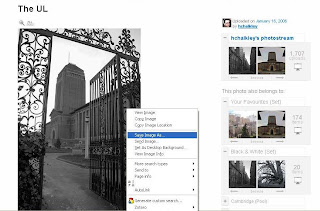
5. Choose a location and filename for your image and click on Save. Since most creators ask that you attribute their work, a useful practice is to save the image with the creator's name as the filename, then you won't forget it!
6. Blog about Things 9 and 10!
Uses for images ...... are boundless. Add them to your presentations (as watermarks or corner thumbnails if you prefer them subtle); grab students' attention by using them on posters and flyers; put them on your website, and of course, on your blog ...
What if I don't really 'think visually'?Use a
free photo editor to overlay text onto your images, or go for word art instead:
Wordle and
Tagxedo allow you to upload strings of text or tags and create tag clouds.
Optional extras:
If you like the look of Flickr, create an account by clicking on 'Sign Up' at the top of the page.
NB: you'll need to create a Yahoo account, which is a totally separate login from your Google account.As a registered user you can upload your own photos, or take the opportunity to contact users whose work is not licensed under CC to request special permission to use an image. (Asking never hurts!)
There are plenty of other
image banks available, including
FlickrCC, a search engine designed to find only Creative Commons-licensed material on Flickr. Why not explore a few more?
Next time...In Thing 11, you'll be looking at Slideshare - like Flickr for powerpoints! - and another great source of inspiration for using images.
 From L-R: Katie Birkwood, Sarah Fletcher & Helen Murphy


 Clicking on 'Some rights reserved' should allow you to see clearly whether and how you are allowed to reuse the image.


 Posts


